
HIGH FIDELITY AI
HAIL™
High Fidelity AI
First-Time User Guide
New to HAIL?
Start Here.
You do not need to learn six AI systems. Just choose what you want to do: write, analyze, upload, talk, translate, or verify.
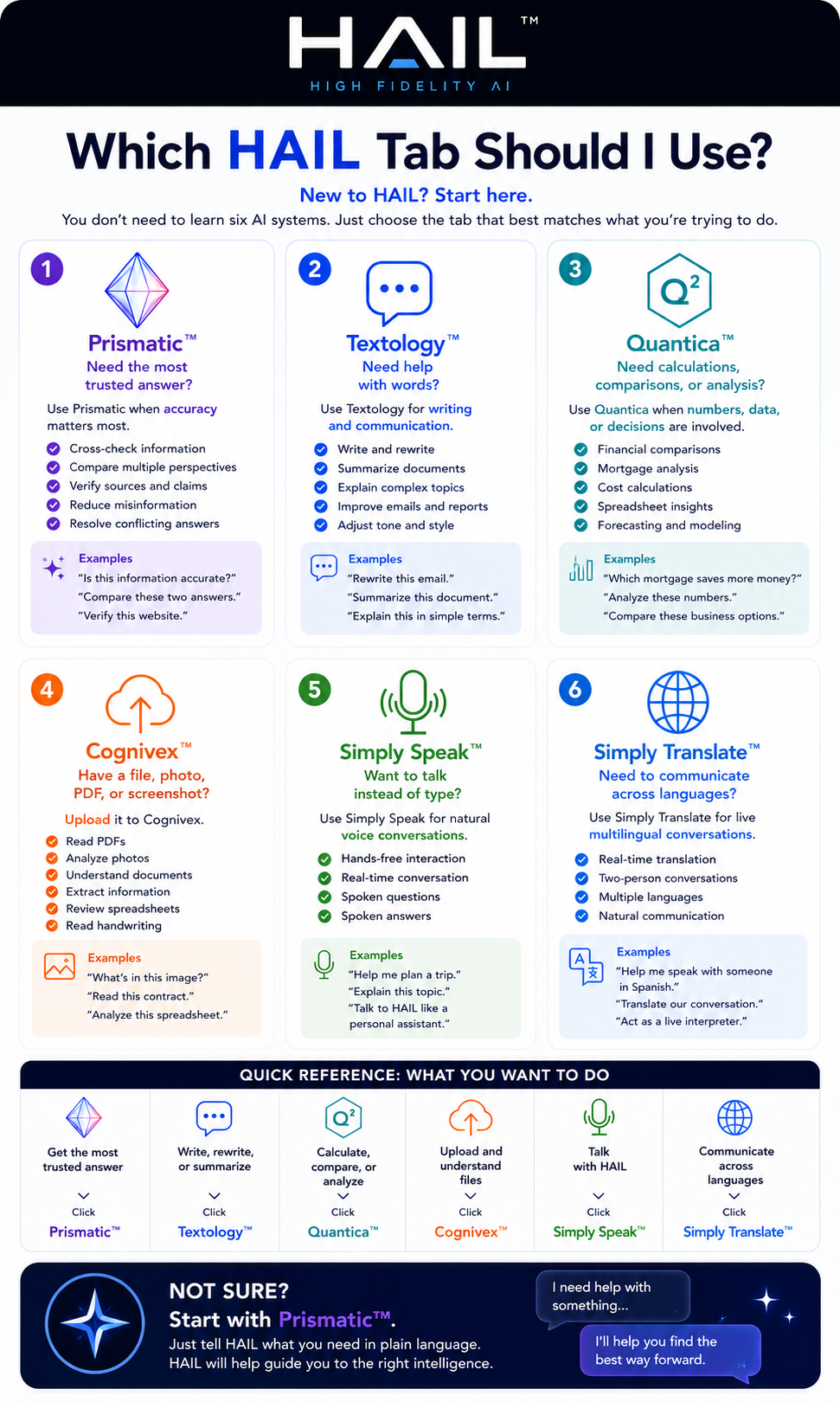
What do you want to do?
Pick the closest match below. HAIL will help with the rest.
Need the most trusted answer?
Click Prismatic™ when accuracy matters.
- Verify information
- Compare sources
- Cross-check answers
Need help with words?
Click Textology™ for writing and communication.
- Rewrite an email
- Summarize a document
- Explain something clearly
Need numbers or analysis?
Click Quantica™ for calculations, comparisons, and decisions.
- Compare mortgages
- Analyze pasted numbers
- Forecast outcomes
Have a file or image?
Use Cognivex™ when you upload something.
- Read a PDF
- Analyze a spreadsheet
- Explain a photo or screenshot
Want to talk instead of type?
Click Simply Speak™ for natural voice conversation.
- Ask out loud
- Get spoken answers
- Use HAIL hands-free
Need another language?
Click Simply Translate™ for live multilingual communication.
- Translate a conversation
- Speak with someone in another language
- Use HAIL as a live interpreter
Not sure where to start?
Start with Prismatic™. Tell HAIL what you need in plain language, and HAIL will help guide you to the right intelligence.